Page 1 of 1

Viewing and Context Menu Problem

Posted: 25 Feb 2021 19:53
by Tromick
Image

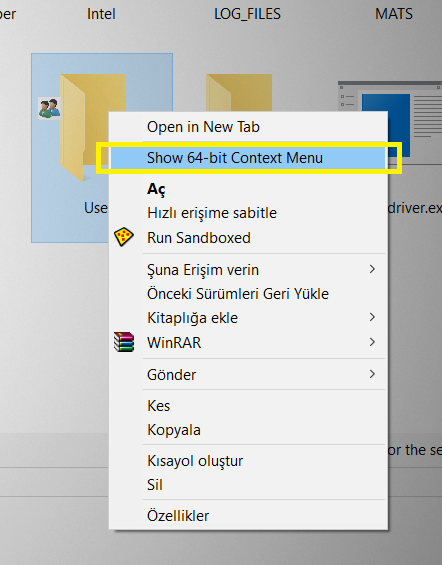
Q1 How can i remove "Show 64-Bit Context Menu" without removing context menu itself. There is already, it is annoyying.

Q2 I want to save my "Views" and "Sort By" customized for every folder but i failed. All the folders are same whatever i do... It does not save my settings for each folder.
I checked all the settings on "Remember list settings per tab" but it did not worked. If i do Small Icons, it does it to all folders. If i sort it by date, it does it to all folders. If i add-remove column, it does it to all folders. I want to personalize all my folder for my taste. This is soo bad!!

Image
Q3 I would like to do it more small but program does not give me permission to do it.

Q4 Is there way to get that cute pizza icon? :biggrin:

Thank you!

Re: Viewing and Context Menu Problem

Posted: 26 Feb 2021 22:53
by notabot
Q1
What you see is Windows' 32-bit context-menu (with added XYPlorer entries). The 32-bit and 64-bit contextmenus are stored in a different part of the registry. They can (and will!) differ. Sometimes an entry is only available in the 64-bit context menu, because a program only puts it's entries there and not in the 32-bit one..

Long sory short: sooner or later you need the 64-bit context menu.

Re: Viewing and Context Menu Problem

Posted: 27 Feb 2021 15:14
by Tromick
notabot wrote: ↑26 Feb 2021 22:53 Q1
What you see is Windows' 32-bit context-menu (with added XYPlorer entries). The 32-bit and 64-bit contextmenus are stored in a different part of the registry. They can (and will!) differ. Sometimes an entry is only available in the 64-bit context menu, because a program only puts it's entries there and not in the 32-bit one..

Long sory short: sooner or later you need the 64-bit context menu.
Thanks for your reply. My eyes got used to it. But i don't use XYPlorer due to Q2. Most important one.

Re: Viewing and Context Menu Problem

Posted: 27 Feb 2021 17:58
by notabot
I don't use XYPlorer either. Terrific file-manager, that meets all my requirements (and beyond!), except for 64-bit.

Regarding your Q2:
That is possible:
  • Go to a folder where you want to have a specific layout
  • Configure it to your liking
  • Menu:View > Folder View Settings > Save Folder View
The next time you visit that folder, layout will be switched automatically.

Re: Viewing and Context Menu Problem

Posted: 27 Feb 2021 18:03
by Horst
notabot wrote: ↑27 Feb 2021 17:58 I don't use XYPlorer either. Terrific file-manager, that meets all my requirements (and beyond!), except for 64-bit.

Regarding your Q2:
That is possible:
  • Go to a folder where you want to have a specific layout
  • Configure it to your liking
  • Menu:View > Folder View Settings > Save Folder View
The next time you visit that folder, layout will be switched automatically.
And don't forget to "Enable Folder View Settings" in the same place.

Re: Viewing and Context Menu Problem

Posted: 27 Feb 2021 18:08
by Horst
notabot wrote: ↑27 Feb 2021 17:58 I don't use XYPlorer either. Terrific file-manager, that meets all my requirements (and beyond!), except for 64-bit.
...
I use Total Commander 64-bit and XYplorer but I don't see much restrictions coming from the bitnes of XYplorer.
Whats the problems you get compared to your x64 solution (whatever it is) ?

Re: Viewing and Context Menu Problem

Posted: 27 Feb 2021 18:18
by Tromick
Horst wrote: ↑27 Feb 2021 18:03
notabot wrote: ↑27 Feb 2021 17:58 I don't use XYPlorer either. Terrific file-manager, that meets all my requirements (and beyond!), except for 64-bit.

Regarding your Q2:
That is possible:
  • Go to a folder where you want to have a specific layout
  • Configure it to your liking
  • Menu:View > Folder View Settings > Save Folder View
The next time you visit that folder, layout will be switched automatically.
And don't forget to "Enable Folder View Settings" in the same place.
notabot wrote: ↑27 Feb 2021 17:58 I don't use XYPlorer either. Terrific file-manager, that meets all my requirements (and beyond!), except for 64-bit.

Regarding your Q2:
That is possible:
  • Go to a folder where you want to have a specific layout
  • Configure it to your liking
  • Menu:View > Folder View Settings > Save Folder View
The next time you visit that folder, layout will be switched automatically.
Thank you both! It worked! But however, that means i always have to click that button for my each preference... What the... Hope they will do it something about this. (Maybe 5 years later? LOL)

(Q3-Q4) I am sure there is no *.xml file for sizes or icons. So i won't be able resize that META bar or i won't be able to change that folder size icon with old tasty pizza icon! :biggrin:

Re: Viewing and Context Menu Problem

Posted: 27 Feb 2021 20:17
by notabot
Tromick wrote: ↑27 Feb 2021 18:18 (Q3-Q4) I am sure there is no *.xml file for sizes or icons. So i won't be able resize that META bar or i won't be able to change that folder size icon with old tasty pizza icon! :biggrin:
You *can* resize that META bar: you can make it LARGER :D :biggrin: (just drag it upwards when you are on the up/down/resize line).
I think the current size is the minimum size required to show all information in one of the other tabs in the Info Panel.
(or just hide it: Menu:Windows > Show Info Panel F12)

If you want the 'Pizza' icon (it looks like a sandbox to me, btw):
- just click that menu entry
- take a note of the name of the executable that is started ( via Task Manager, for example)
- extract the icon using NirSoft's IconsExtract or similar

Re: Viewing and Context Menu Problem

Posted: 27 Feb 2021 20:54
by notabot
Horst wrote: ↑27 Feb 2021 18:08 I use Total Commander 64-bit and XYplorer but I don't see much restrictions coming from the bitnes of XYplorer.
Whats the problems you get compared to your x64 solution (whatever it is) ?
In my opinion one should always run a file manager on a system in the 'native resolution' of that system.
Otherwise, you will be looking at the wrong System32 folder (can be worked around by using Windows\sysnative)

Also the wrong context menu. TC as well as XY use complicated ways to show the 64-bit context menu. I can never be sure if they apply all the (undocumented) ways Windows uses to show the native 64-bit context menu. But that is the same for all programs, even 64-bit, that add their own entries "on the fly" in their application (like Everything does, for example ;)) Although .. on econd thought .. there might be an API for that.
I make *a lot* of modifications to the context menu and the registry in general. I would have to rewrite all my scripts to also support the wow6432node entries too.

Even file associations might differ (although that is *very* uncommon ...)

Preview handlers might differ too.

Furthermore 32-bit applications can only address 2GB RAM. Not a problem for the file manager self , but in general might cause issues.


32-bit applications use slightly less RAM than 64-bit ones, but they also load extra 32-bit resources (DLL's tec.) Those will be 'loaded as' shared memory.
If you have only 64-bit applications running, there is nothing to share, causing that 32-bit application to use *more* memory.
If you run all 64-bit application, those DLL's are in most cases already loaded in shared memory and don't cost extra RAM.

I have just 2 32-bit applications on my system. One is on my todo-list to write my own version of. The other I use infrequently.


And another point, especially relevant for filemanagers like TC: plug-ins
If you still use the 32-bit version while there is also a 64-bit edition, you are probably stuck with that version because of the plugins you need.
That means development of that plugin has stopped. And that means that you can't move forward ( the reality is more nuanced, but you get the point)


I probably forgot a few points, but those are my reasons why I want my file manager to be 64-bit.
They are debatable, but not negotiable :)

That is a pity, as I really like XYPlorer. It even has a (very well thought out) Undo function for file operations.
What also made me smile is that I am used to double-click on an empty part of the file list to go one level up. Muscle memory made me do that in XY too. Worked! (and the breadcrumb toolbar keeps track. Brilliant!)