Page 1 of 1
Setting up a default view
Posted: 01 Oct 2021 03:55
by jets88
I'm trying to figure out how I can set up a default xyplorer Interface. so no matter what I do it always opens up back to the same interface. I want it to open up to the default showing this PC with all my drives and the expanded file Tree on the left side with a specific Drive showing all its folders in the drive. I want this view locked so everytime I go back to it or restart the program that it opens up the same xyplorer Interface. Directory Opus has something called default Lister where no matter what you do it always opens up to this default lister. it's just one button that locks the Interface in place so every time you open it it's the same view. there something like that with xyplorer? Thank you for your help
Re: Setting up a default view
Posted: 01 Oct 2021 04:38
by RalphM
You should look into tabsets (which can contain only one tab) and you could load that same tabset on startup of XY with a startup script.
As for the tree, the regular maxitree follows whatever is displayed in the list. If you don't want this, you could switch to minitree but that one doesn't update automatically to changes in the filesystem, it is a neat way to unclutter your tree though.
Read up in the help about these features and decide which might suit your needs.
Re: Setting up a default view
Posted: 01 Oct 2021 05:33
by jets88
Yeah I know nothing about loading up scripts or anything like that I'm not an advanced user. just hoping that there was one button where you could lock the view like there is in Directory Opus. I'll read up on the help section thank you for your reply
Re: Setting up a default view
Posted: 01 Oct 2021 09:35
by highend
Menu - Scripting - Go to Scripts Folder
Save the attachment to this post in this folder (and keep the same name = "Default.xys")
Customize the toolbar and add a "User Button #..." to the right side
Right click that new button -> Edit...
Enter this in the "On left click" field:
load "Default.xys";
And to load this on XY startup, start XY with:
Code: Select all
C:\Program Files (x86)\XYplorer\XYplorer.exe /script="::load 'Default.xys';"
Or wherever you've put XYplorer into...
Re: Setting up a default view
Posted: 01 Oct 2021 11:03
by jets88
Right click that new button -> Edit...
Enter this in the "On left click" field: load "Default.xys";
I got to this point and attempted to load the script and it didn't do anything but thanks again for trying to help
Re: Setting up a default view
Posted: 01 Oct 2021 11:06
by highend
Then show a screenshot of that "Edit User Button" window
Additionally, what's the path of XYplorer script folder?
Re: Setting up a default view
Posted: 01 Oct 2021 11:32
by jets88
I attached the two screenshots requested. I don't want to waste your time anymore i did get their email from your comment: There is a prominent "Contact" . just so you are aware this is directly from their support page
Contact
XYplorer
Cologne Code Company e.K.
Alteburger Str. 7
50678 Köln, Deutschland
Bug reports, wishes, and usage questions: Please visit the user forum.
Licensing, site licenses, quotes: Please send us an email.
Re: Setting up a default view
Posted: 01 Oct 2021 11:38
by highend
And when you left click that button, nothing happens?
Open that file in a text editor, copy the whole content
Menu - Scripting - Run Script...
Paste everything here, click the OK button. Still nothing?
Re: Setting up a default view
Posted: 01 Oct 2021 12:27
by jets88
The only thing it does that I can see it's closes the file Tree on the left hand side. After cutting and pasting it seems like it resets it but it doesn't keep it reset unless I press it every time and it doesn't keep the file treee xpanded to the drive I want it expanded to. I was looking for a default interface setting that would lock everything in place drives expanded, folders expanded etc. Something where I won't have to press a button each time because I can just press this PC and it will bring me back to to that same configuration. Not trying to be a pain but that's what I was asking in my original question
Re: Setting up a default view
Posted: 01 Oct 2021 12:55
by highend
I want it to open up to the default showing this PC with all my drives and the expanded file Tree on the left side with a specific Drive showing all its folders in the drive
That's one drive, not all^^
So...
1. Are you using a minitree (Menu View - Mini Tree - [x] Mini Tree)?
It sounds like it because with a maxi tree the full D: root level would have been expanded through the script
2. Setup everything like it _should_ look in the tree and show a screenshot
There are multiple ways to setup a specific environment (through scripting) but none will be immutable (and imho that doesn't make sense, it's a file manager and not some kind of kiosk software)...
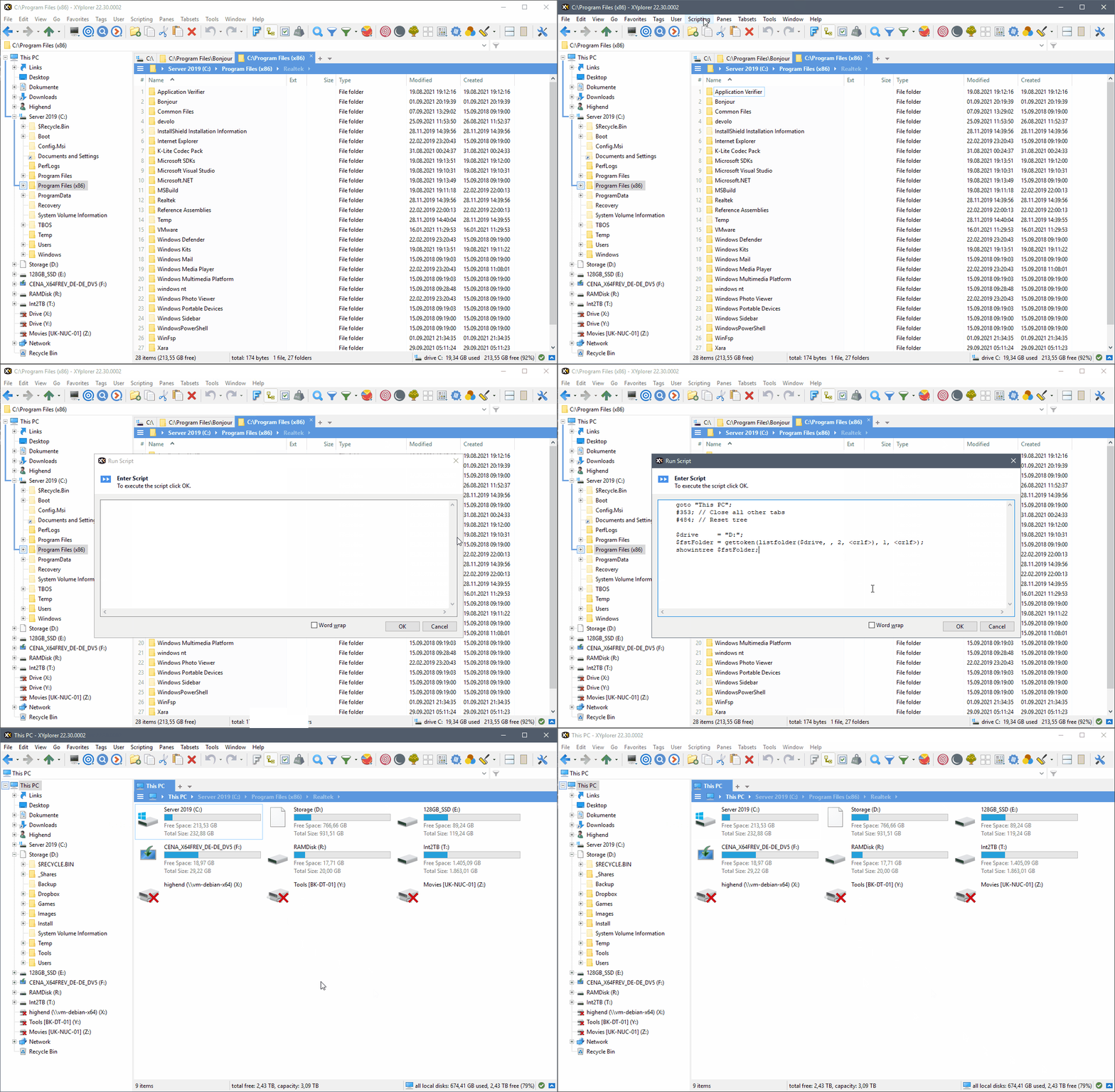
- Animation.gif (328.28 KiB) Viewed 3038 times
Re: Setting up a default view
Posted: 01 Oct 2021 13:04
by jets88
will do thanks for your assistance